

Telemetry – OS Windows collects data about you
The topic is not new, but it is important enough for “refreshing knowledge” since many people sometimes forget important facts related to the most important Microsoft product.
Exactly 9 years ago, on July 15, 2015, the Windows 10 operating system was released, and with the release of the Windows 10 critical update, originally called the “Creators Update”, which was made generally available on April 11, 2017, Microsoft incorporated a whole host of software that collects data about user, software, hardware and many other information. After March 2017, under pressure from expert companies, various organizations, and European institutions, Microsoft publicly published “a list of diagnostic data collected at the basic level,” as Microsoft’s Head of Devices and Windows Group Terry Myerson called it.
The European Union started the investigation back in 2015 in Switzerland, right when Windows 10 was released. Among other problems that the expert group pointed out, they confirmed that Windows 10 collects a considerable amount of data, without properly informing the user about it. After it was announced what data Windows operating systems collect, the European Union asked Microsoft to go one step further and describe and explain everything in more detail.
The Windows Central YouTube channel described a lot back in March 2017, and you can watch that video here:
Terry Myerson further explains: “Individual data points related to a specific event are collected and named ‘events’. These are further organized into diagnostic fields. We also do a more detailed review of the data we collect from users, which provide basic and complete diagnostics.”
If you didn’t understand Terry here is the clarification. Microsoft then provided “full” data on its basic data collection, but wouldn’t detail the data it received from those who allowed full telemetry, meaning we got the report in its most basic general form.
Microsoft did not want to talk about the fact that this data includes information about external devices and peripherals, configuration options, performance data, even watching movies, installed applications, and much more.
Most of you who have installed the system or the “Creators Update” probably remember the screens that inform the user during the software installation about the data that the system collects about the user and its interface.
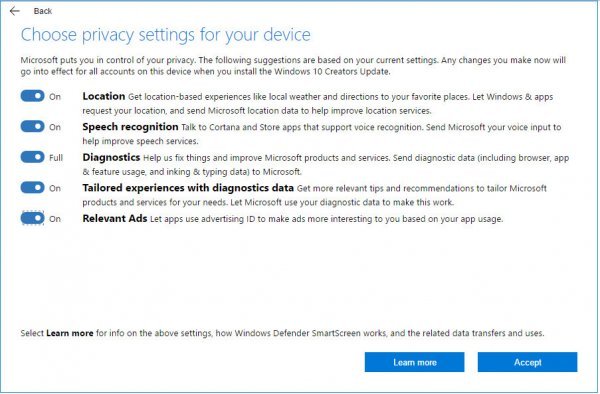
Among the many articles I read on this topic was one whose author concluded: “If you want to protect yourself from it, the solution is very simple – stop using the computer and the Internet.” This is a completely wrong approach to the problem. It sounds like when consumers find out that there are too many pesticides in some potatoes on the market (and I’m sure that rural cooperatives could legally justify the use of pesticides in the production of potatoes just like Microsoft), the sellers say to them: – if you don’t like this potato, don’t eat it or buy another potato.
Of course, users of the Windows system as well as institutions from the lowest to the highest levels have the right to information about what they install on their computer and what the use of such an operating system entails. They also have the right to comment, advertise and protest against privacy violations. As in all other cases, keeping silent is considered a voluntary consent to tracking, and this is exactly one step further in modeling a society of henchmen and “zombies”.
Clarification of the term DATA TELEMETRY
Telemetry is a process that is automated, and the user is unaware of the set processes that take place in the background of the system software. Communication in which data from other devices is collected in one or more places. The data is transferred to those locations in order to analyze, or “monitor” the data. Telemetry was not invented by Microsoft. On the contrary, this process has been used in various branches of science for decades, in order to gather certain data.
Telemetry therefore allows a large amount of data to be pulled from a huge number of devices in real time. After such an explanation, many might conclude that telemetry is actually harmless. And it’s really harmless if it’s about data that isn’t linked by your first and last name. But the data is linked to your first and last name. This is precisely how the line between spying and telemetry is erased.
The best proof is that if you search for fishing equipment (either with Bing or Google search) you will suddenly start getting ads that have just been posted by companies that sell fishing equipment. When we talk about Windows, telemetry has a broader meaning than Internet browsing, where you are most often tracked by Google. Microsoft collects hundreds of gigabytes of data and analyzes Windows usage.
Data telemetry is the mechanism by which Microsoft collects data through Windows, about the user and about the computer. What it collects and how to disable the sending of some data is, among other things, the topic of this blog. Some (not all) of the data collection mechanisms may be turned off or prevented from being collected. But there is also a part that we have no insight into and cannot prevent.
Let me clarify this a bit from the legal aspect. The moment you installed Windows, you most likely just clicked Next when you came across a long text, which of course you didn’t read, and in the EULA part of which it says that by installing Windows you accept the collection of data. You also have a paragraph in the Windows EULA that says Microsoft can collect data about you and use it for any purpose. Especially if they suspect illegal activities, i.e. the use of illegal software.
Microsoft talks on its official pages about the collection of data about the user and the system he is working on. One gets the impression that everything is correct, legally regulated and legal, but you will judge whether it is so. Rather, it will be that we gradually accept spying on Windows system users, which is explained as justified and even legally regulated, all on the basis of business and many other dependencies on this operating system.
Now we come to the misconception that appeared in the beginning, when the “Creators Update” first appeared. The misconception was that all telemetry could be avoided by simply turning off the options offered by the operating system during installation or update. It would look like this in Windows 10:
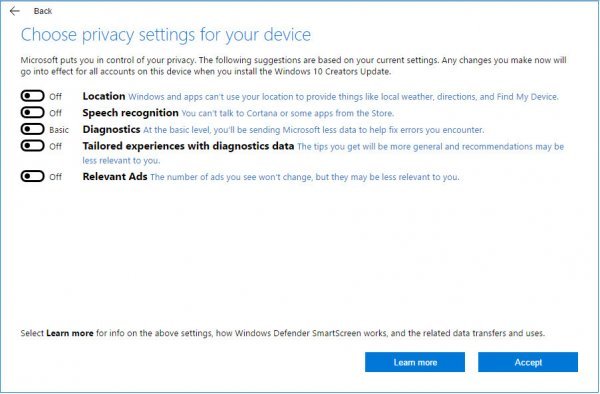
Unfortunately, even with all of these options turned off, the data that Microsoft called “requested” continued to flow unhindered from your computer to Microsoft’s data centers.
In the new version of the Windows 11 operating system, in addition to all the options and possibilities known to us, Microsoft has also perfected telemetry. You don’t need to doubt that the data drain from your Windows 11 computer is anything less. As of 2024, Windows is collecting more data about you than ever before, and that’s a real cause for concern for privacy advocates. Part of the data is necessary for the system to function, but not all.
TELEMETRY IN WINDOWS 11
Fortunately, some parts of Windows 11 data collection are optional. You can opt out of tracking during the initial setup or turn it off afterwards – even if Microsoft makes it difficult.
Here are some of the ways Windows 11 collects your data and how you can turn each one off (when possible).
Required data collected
Microsoft classifies some of the collected data as “required”, claiming that this data is necessary for Windows to work efficiently, update itself and be safe from various threats. This data includes basic details such as the model of your device running Windows, the hardware components in your system, and diagnostic data when catastrophic system failures occur.
Ostensibly for diagnostics, Microsoft collects basic error data, such as whether a Windows update was successfully applied and whether the operating system is working as intended. It also collects the version of Windows you’re running, plus any optional installations you’ve applied, plus any apps and services you’ve installed.
You cannot rule out any of the above. Everything below is (mostly) optional. For a more detailed overview of the required data collected by Microsoft, see this Microsoft Learn article.
Optional data collected
While we’re getting into optional data collection, one note: certain Windows 11 apps and services require some data collection, but the apps and services themselves can be disabled. In this sense, these data are “optional”.
Here are the optional data points that Windows 11 collects and how you can opt out of each. For exhaustive data analysis, Microsoft goes into extreme detail here.
7 ways Windows 11 collects your data and how to turn it off
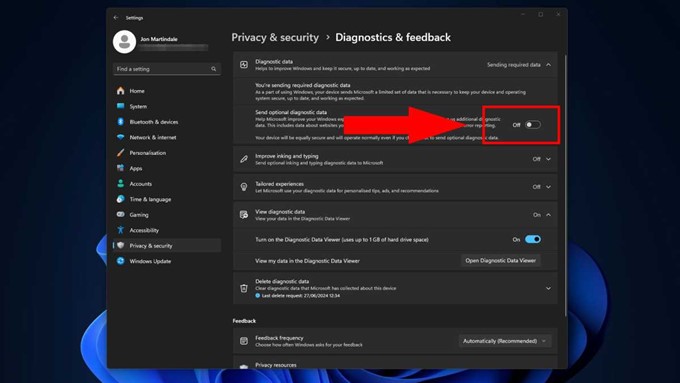
1. Exclusion of optional diagnostic data
Windows 11 can track your web browsing, including your browsing history and any search terms you enter in a Microsoft browser, such as Microsoft Edge. It can also track any changes you make to configuration settings in Microsoft browsers, which could affect search.
To disable this, go to Settings > Privacy & security > Diagnostics & feedback, then set Send optional diagnostic data to Off.
2. Connected devices
The same setting that collects error reporting and tracking data also allows Microsoft to collect additional details about your device and everything connected to it. This includes webcams, storage drives, displays, add-on cards, network adapters, speakers and sound systems, printers, scanners, and anything else you can plug into your computer.
Windows 11 can get their names, drivers, driver states, Wi-Fi details, available local networks and more. It may also collect information about how you use Windows 11, including your default application choices.
You can opt out of this data collection in the same way as browsing history. Go to Settings > Privacy & security > Diagnostics & feedback. Then set Send optional diagnostic data to Off.
3. Inking and typing
Windows 11 collects anonymized data about your typed, handwritten, and spoken input, including every keystroke, any dictation, and every writing with a pen or touch. This can include samples of what you’ve written or dictated, as well as any Windows transcriptions.
This data is used to improve relevant services, such as more accurate Windows in voice recognition and handwriting reading.
To disable this, go to Settings > Privacy & security > Diagnostics & feedback. Then set Improve inking and typing to Off.
4. Performance of products and services
This telemetry data is focused on the health of your computer and operating system, applications and drivers. Although the tracked data is only pseudonymized, the data itself is fairly harmless.
This data includes information about how quickly Cortana responds to your voice commands or how long it takes facial recognition to run and complete its calculations.
It can also be used for some customized experiences, including recommending settings changes to optimize battery life or suggesting cloud storage providers if your device is running low on storage space.
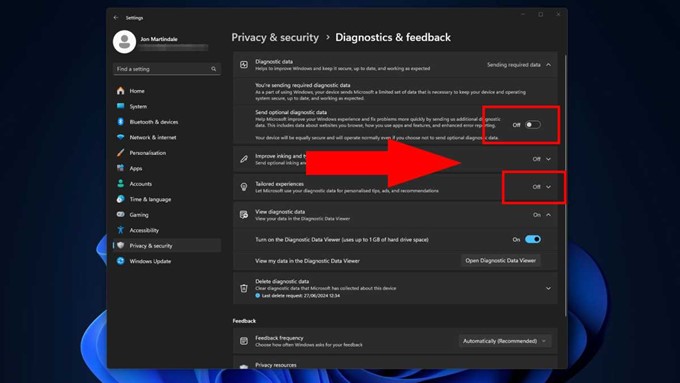
To turn this off, go to Settings > Privacy & security > Diagnostics & feedback. Then set both Send optional diagnostic data and Tailored experiences to Off.
5. Use of products and services
Windows 11 collects partially anonymized data that tracks which apps you use and which apps launch when certain errors occur. It also tracks whether you’ve turned off certain help and suggestion features within Windows so Microsoft can improve accuracy and usability.
This data is mainly used for customized experiences, where Windows will suggest that you enable certain settings that you may have disabled. It can also be used to suggest alternative Microsoft and third-party apps based on the apps you use most.
You can opt out of this data collection in the same way as in the previous example. Go to Settings > Privacy & security > Diagnostics & feedback, then set both Send optional diagnostic data and Tailored experiences to Off.
6. Setup of software and inventory
Windows 11 further collects information about the apps you run, the anti-malware apps and services on your system, driver updates, the Windows Update schedule, when downloads start and end, and which apps from the Microsoft Store are installed and when they might need them update.
The Custom Experiences feature also uses this data to recommend apps comparable to the ones you use most.
You can disable this data collection in the same way as in the previous example. Go to Settings > Privacy & security > Diagnostics & feedback, then set both Send optional diagnostic data and Tailored experiences to Off.
7. Location
Windows 11 asks for your location data for Find my Device to improve the relevance of search results and provide more relevant weather data and other local information. Location data can also be used by third-party apps if you give them permission.
You can turn off location tracking in Windows 11 by going to:
Settings > Privacy & security > Location, then make sure location services are turned off. Alternatively, you can turn it off in individual apps using the app list on the same page.
Diagnostic Data Viewer
If you want a detailed report on your data that Windows 11 is tracking, there’s software for that, too.
Go to Settings > Privacy & security > Diagnostics & feedback, then set View diagnostic data to On.
You will soon be directed to the Microsoft Store and install the Diagnostic Data Viewer app. You will need about 1 GB of free storage space. Once installed, you can use it to view data and telemetry that Windows 11 has recently collected about you, as well as details on which apps are sending the most data to Microsoft.
I would only add that the Diagnostic Data Viewer will not allow you to view all the data that is the subject of telemetry, but only those that Microsoft allows you to see. 😉
Microsoft did not want to miss out on telemetry data from computers still running Windows 7 and Windows 8. In June 2016, they added telemetry to these two older operating systems via an update. Someone might be worried when they read all this. You mustn’t be paranoid. You know when you find yourself in a heavy rain with a bad umbrella that has already twisted 3 times. You will pass by buildings that have little eaves, but you cannot hide from the rain that is thrown by the wind. You will definitely come home wet, but you will still protect yourself as much as you can. Observe the telemetry as well – protect yourself as much as you can. Happy Windows.
How to disable telemetry in Windows 11
Author: Bosnić Nedim