

To use or not to use Revo Uninstaller, that is the question
I’ve been using one and the same computer “cleaning” software for a long time. It is primarily a system cache and temporary file cleaner, and is known for having an uninstaller built into it even in the free version. It’s time to test a differently designed and engineered software – Revo Uninstaller is primarily an uninstaller, but it has a number of additional tools to keep your computer clean and safe.
All computer users have what is called a preference for certain software tools, and I admit that I was very partial to my previous cleaner. Before Revo Uninstaller, for a long time I did not find any nicely organized and useful (utility) software that I would bow down to and start using regularly.
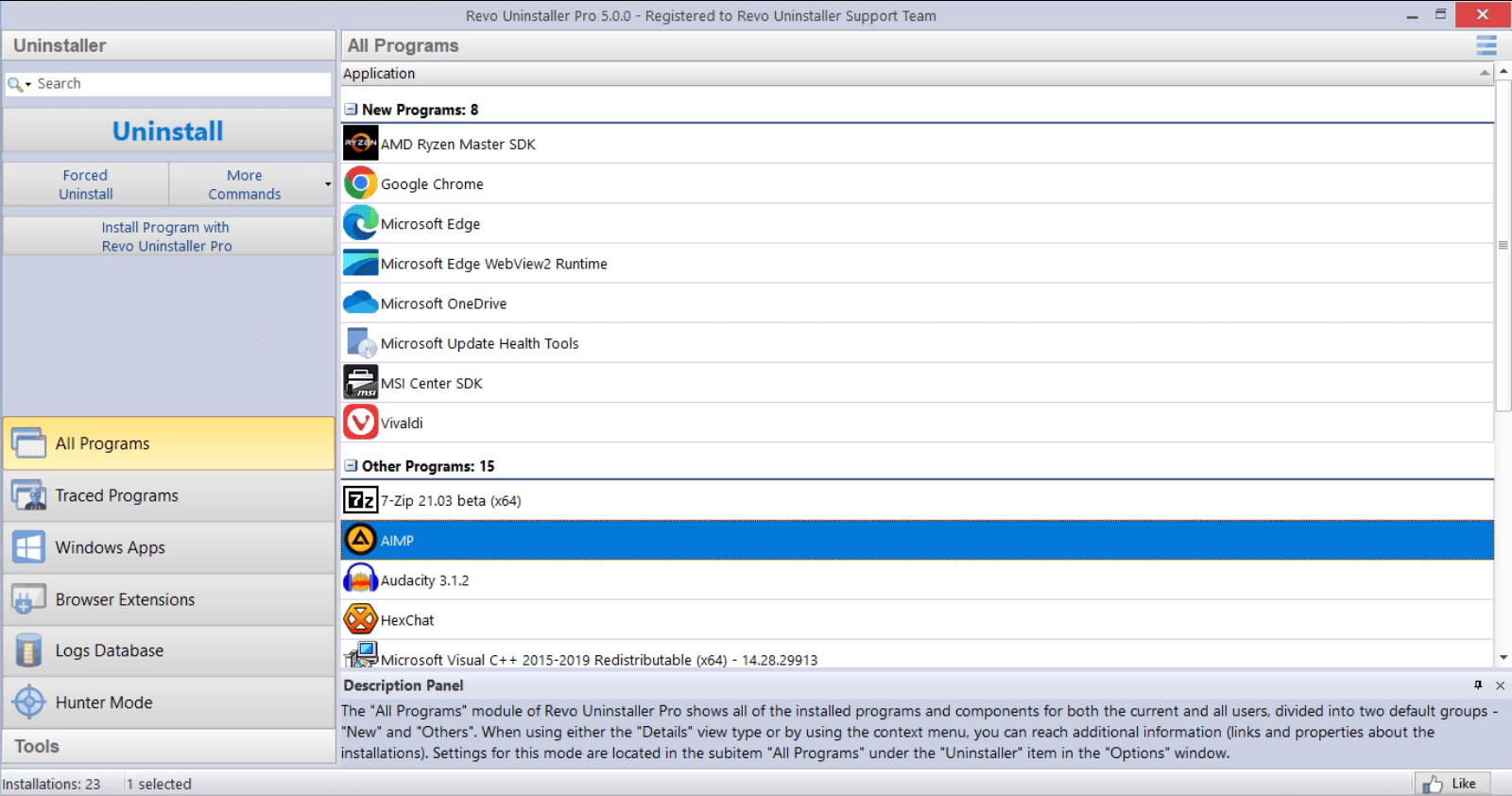
The problem of uninstalling software and removing junk files from the registry and various folders that the uninstallation coldly leaves behind, tormented me and all those who often installed and tested different software. This digital junk will cause the operating system to slow down as a minor problem, but it can often be the cause of much bigger problems, so it is unnecessary to explain why a good uninstaller is important. Previously, I used various software tools developed for this purpose and I uninstalled all of them, of course with the Windows uninstaller. The only one that survived the testing period is Revo Uninstaller. In this blog, I will describe my experience with Revo Uninstaller Pro 5.3.0 in more detail.
To make it easier for you to follow this text, it is best to install Revo immediately, and I am referring you to the link from which you can download this software. The safest place to download the software is the official Revo Uninstaller website.
Download and install Revo Uninstaller to follow this blog
Installation is very easy and can be performed by less trained users. Let’s go through those few steps together:
A. You will download the installation file on the official website of Revo Uninstaller. We have the option to download the free version or the pro version. A better option is to download the pro version and use the guaranteed 30-day free trial.
B. After downloading the installation exe file, right-click on that file and run the installation with Run us administrator. The installation wizard starts.
C. It is assumed that you will accept the license agreement because without it there is no installation. In contracts, we can often find interesting information that we usually don’t like to read, but it is definitely useful to read.
D. In order to complete the installation correctly, follow the instructions in the wizard and, as with this and all others, do not just click Next by heart. I take it that you know English well enough. After the installation is complete, click on “finish”, and we have Revo Uninstaller installed on the computer. We are ready to go.
Let’s explore why Revo Uninstaller is so special. In particular, we will pay attention to all the additional functionalities and advantages that Revo has compared to the Windows uninstaller.
1. Interface
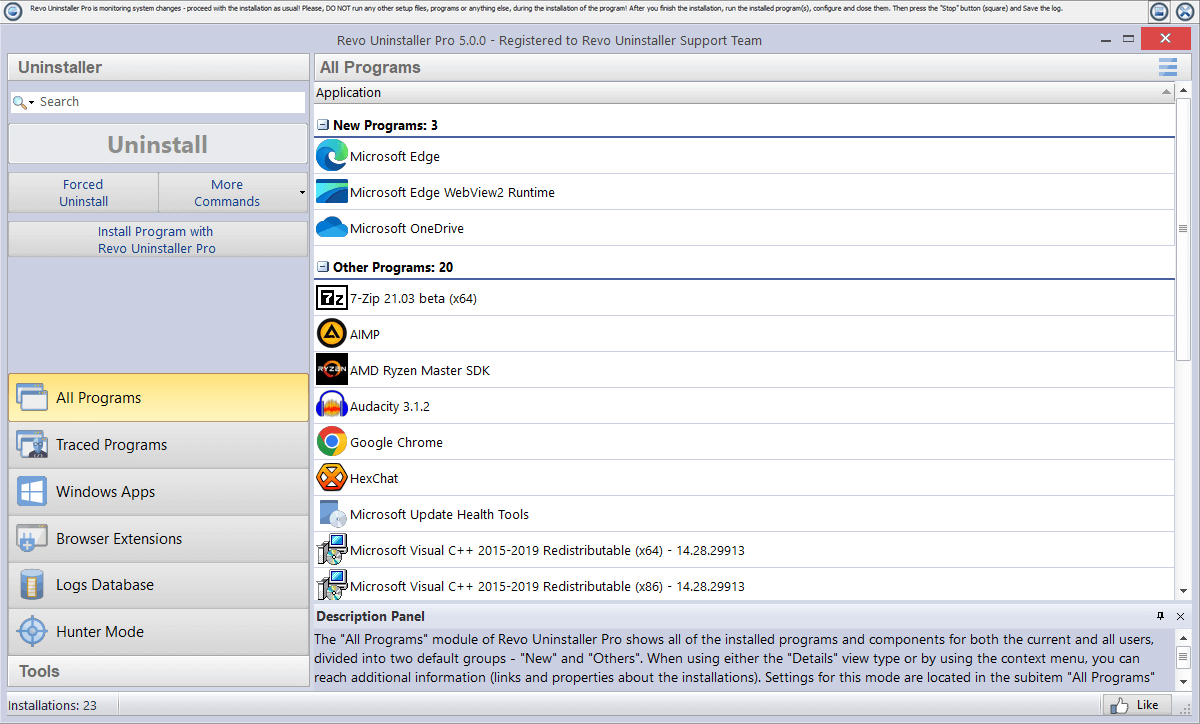
The user interface is intuitive and very easy to use. The space is well organized, and the functions are easy to understand. You don’t need to be a computer expert to quickly navigate the Revo interface. You will easily start studying all the possibilities that are offered. The left window is reserved for the menu and there we will see the features that come in this software tool. By simply clicking, we easily move from one section to another, so navigation is fast and intuitive.
2. We can uninstall multiple programs at the same time
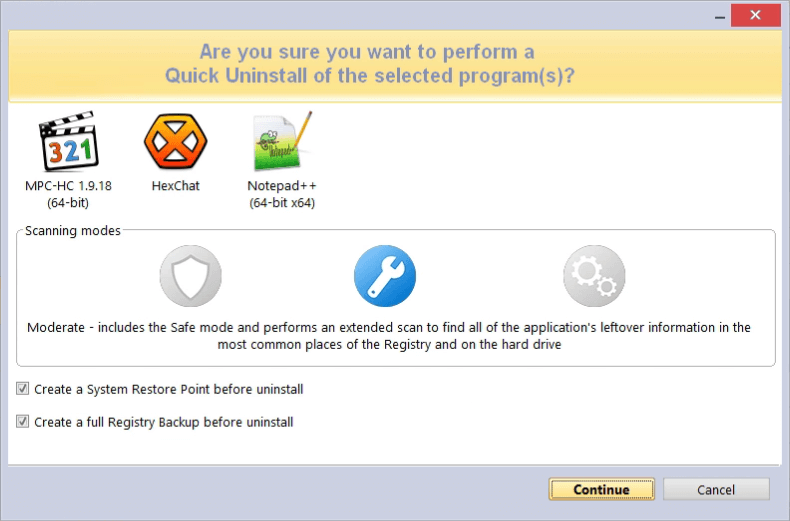
In the Windows uninstaller and in some other uninstallers, you can uninstall only one software at a time. Revo Uninstaller can remove multiple software in parallel at the same time.
In All Programs mode, it offers a complete list of software installed on your computer. That is why it is especially valuable if we need to clean the system of our redundant software or remove several programs at the same time.
3. Uninstalling Windows applications and Bloatware
Bloatware – is software that is installed on the user’s device without the user’s prior permission. The main features of bloatware software are not only taking up space and working memory in your computer, but also launching unwanted processes, which sometimes aim to track user activities.
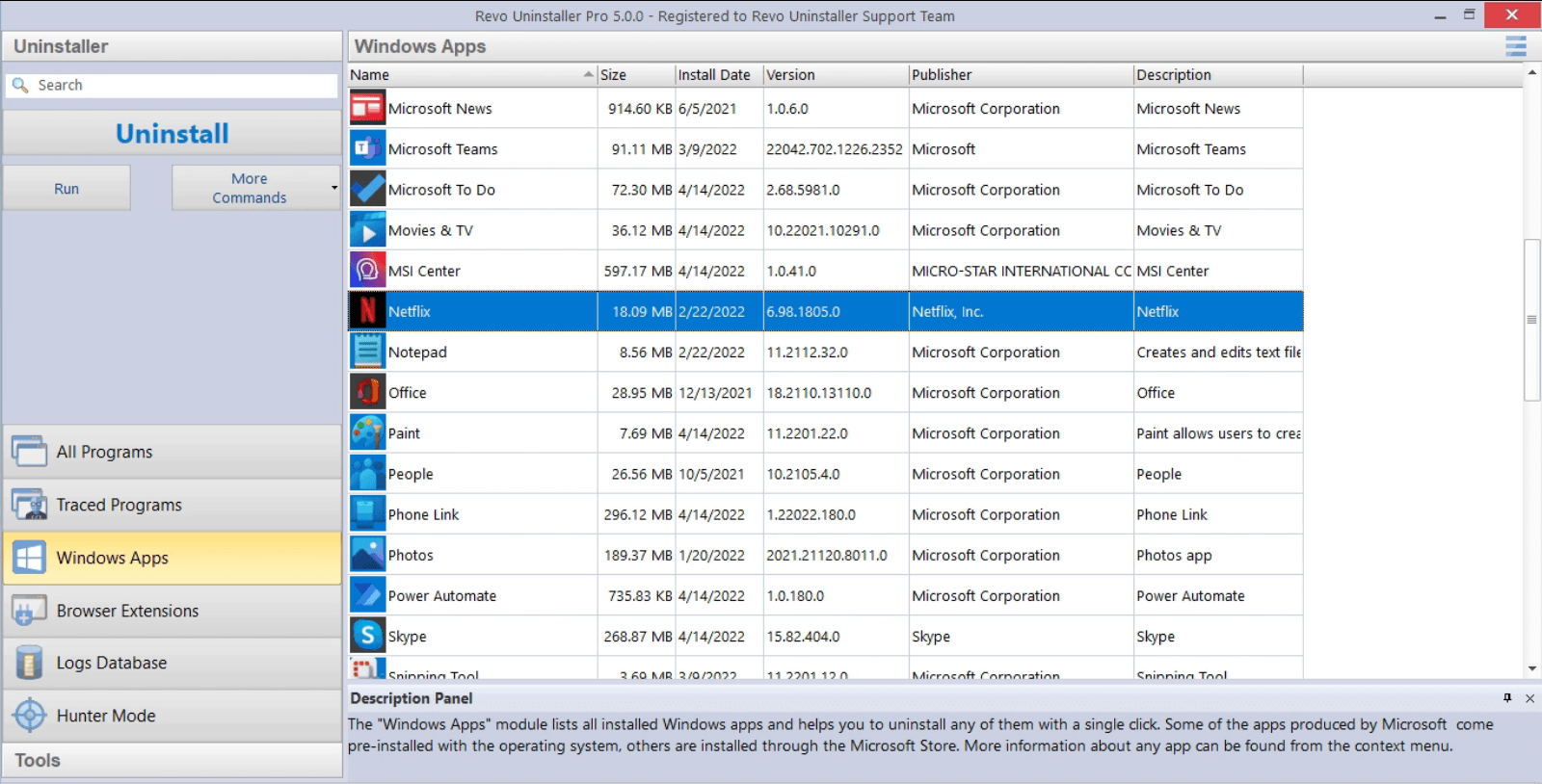
Windows users sometimes want to uninstall an application, and the Windows uninstaller does not allow you to do that. There is an increasing number of Windows applications, which we consider unnecessary, and by uninstalling them, we relieve the system and keep it clean. Revo Uninstaller, in addition to removing standard (after the operating system) additionally installed software, also offers the removal of applications such as Windows Media Player, Microsoft Store, Cortana, and a number of other Microsoft-imposed programs that we do not use.
Click on “Windows Apps” in Revo Uninstaller, select an application and click on “Uninstall“, or “Quick Uninstall” if you have selected multiple applications.
4. Uninstalling extensions and plugins in browsers
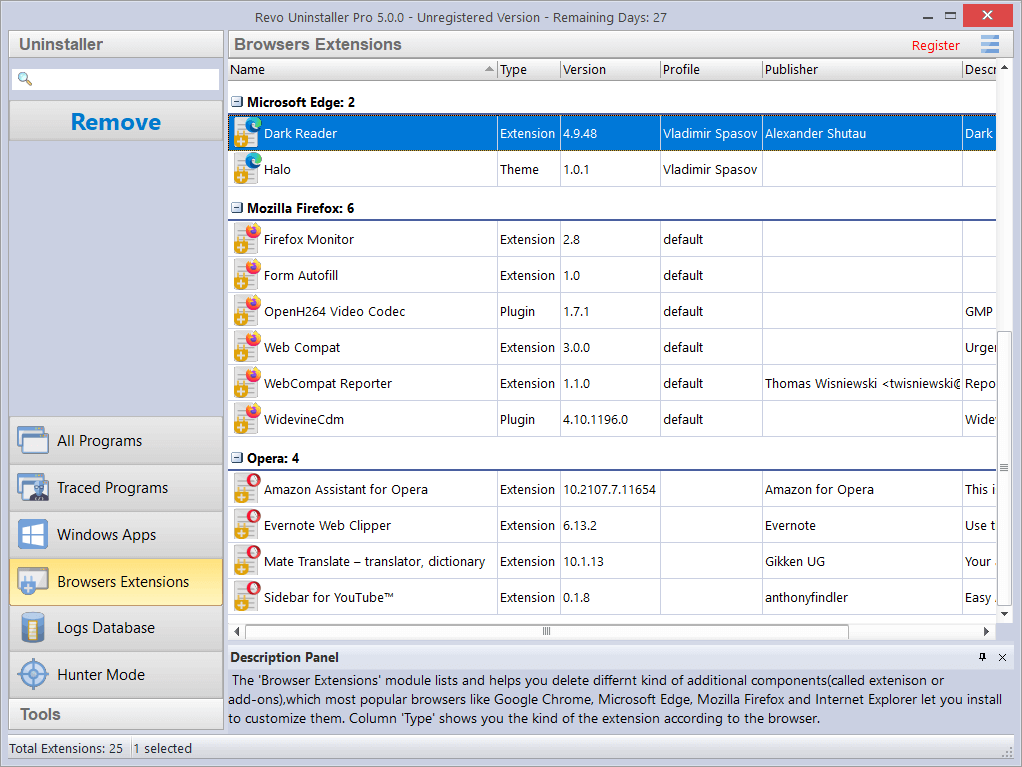
Accumulated extensions and add-ons in browsers can reduce the speed of movement of web content, and sometimes represent a security risk. Revo Uninstaller offers a new functionality in a separate module – uninstalling plugins and extensions for Chrome, Firefox and Edge. Click on Windows Extensions and in the right window select the add-ons and extensions that we want to remove, after which it is enough to click on the Remove button.
5. Logs Database
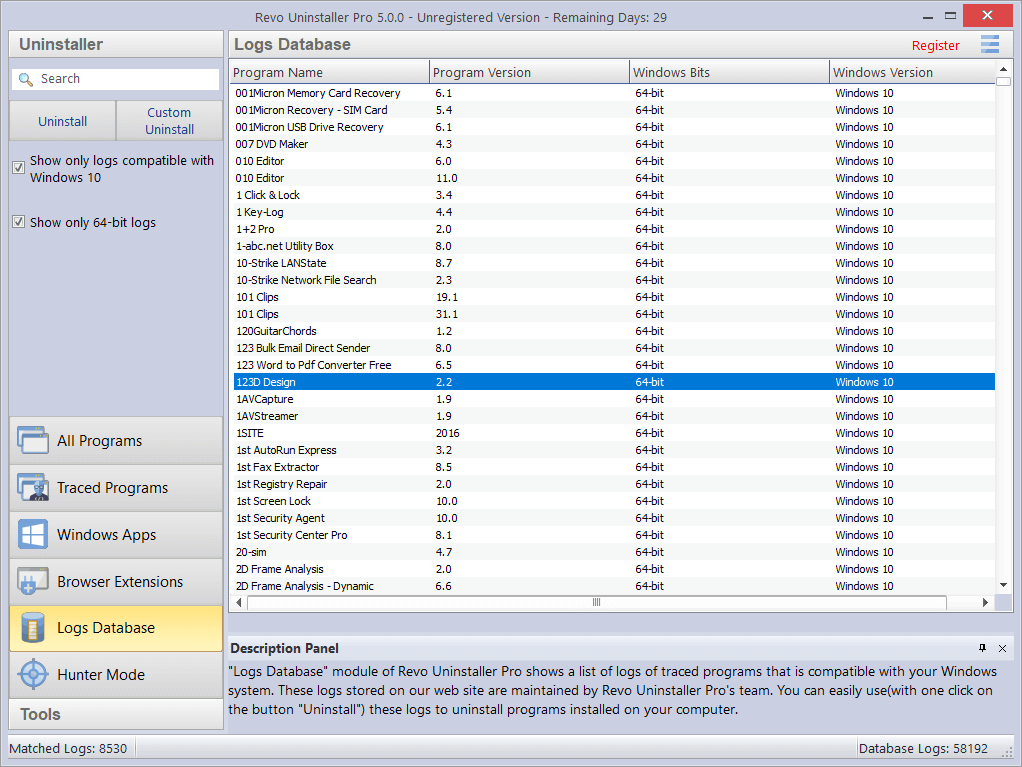
The log database is a large collection of trace logs for many different programs. These logs are created by Revo Uninstaller using the Monitoring function, i.e. monitoring in real time and storage on the Revo server. They behave exactly like the trace logs that users create themselves and can be used to uninstall programs or for additional cleaning, in case of suspicion that there are still residues or as a troubleshooting step.
6. Software installation monitoring
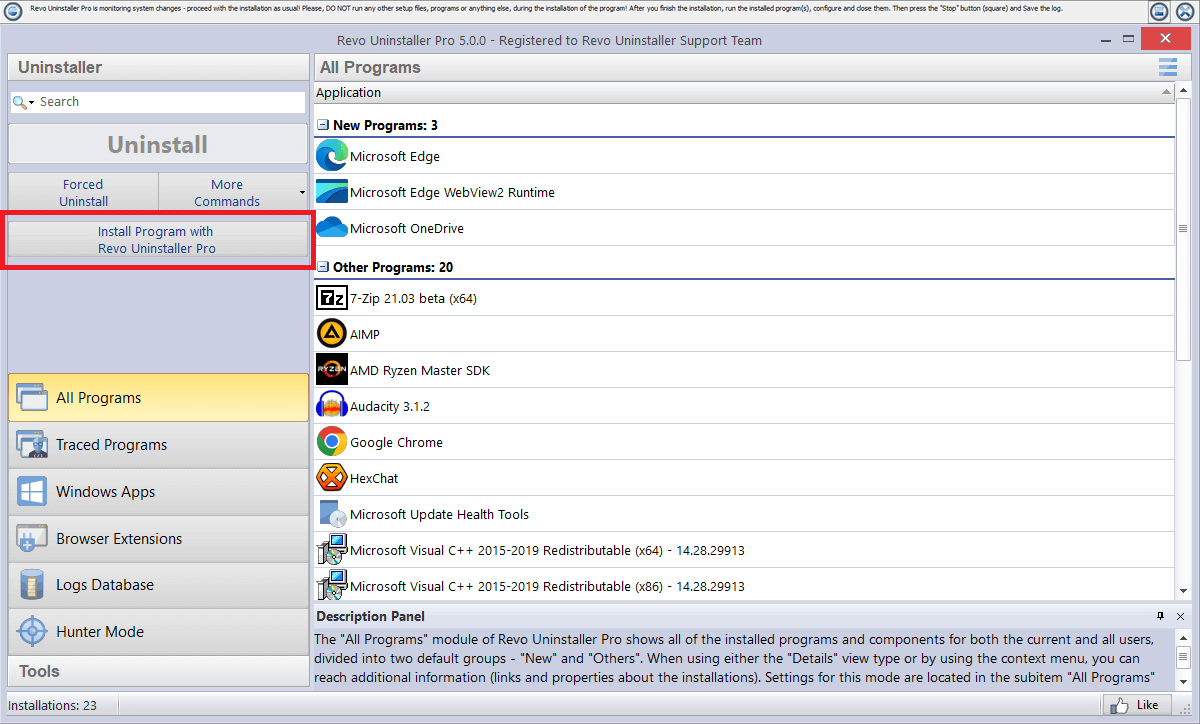
Revo Uninstaller is able to monitor all changes made by the program during installation within the system if we install using Revo. This can be extremely useful if we need to use some software once or if we assume that we will probably uninstall some software if it does not suit us. It can also be useful if we care about the impact of the software, and we want to be sure that it will not leave behind garbage (unnecessary and unwanted files and folders) or entries in the registry system base.
Procedure:
1. Start Revo and click to enter the All Programs mode.
2. At the top left click on the “Install program with Revo Uninstaller Pro” button.
3. Find the installation file and run it.
After this, Revo Uninstaller starts monitoring the installation process and creates a log of all changes made by the software to the operating system.
7. Hunter Mode
Hunting mode is one of Revo’s strengths. A very useful and practical function that provides a visual and intuitive way to quickly uninstall software. It allows us to target and remove applications by dragging the plus pointer over desktop icons or operating system tray icons.
After we launch Revo, click on Hunter Mode in the menu on the left. A floating plus will appear on the desktop. Drag the plus sign with the mouse to the icon of the program we want to uninstall. It gives us the option to uninstall the program, stop the process or work in the application, stop automatic startup and a number of others.
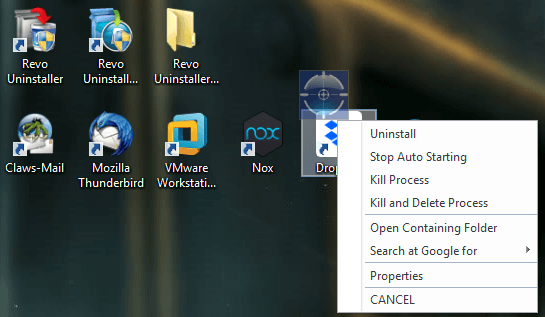
You must have been in a situation where an application freezes and no matter how many times you click on the window of that application, nothing happens. Even from the Task Manager, it cannot be closed for restart. In those situations, only Power Shell and the “kill ####” command (where #### is ID of the process) helped me. Finally, we can solve these situations faster and easier with Revo’s Kill Process command.
When nothing else will, Revo will
Based on all the tests, Revo Uninstaller is a very useful utility for removing all junk from the computer, programs that are otherwise difficult to uninstall or cannot be completely uninstalled. This video simply describes how to uninstall programs that cannot be easily removed from the computer
Tools
Now we come to one very important part that gives Revo its special power. With the Tools module and a number of additional functionalities, Revo goes beyond its basic purpose (software uninstallation) and offers add-ons that are just one more reason to install Revo Uninstaller. In addition to what has been listed so far, we get a set of tools that help maintain the system.
These tools are necessary for every user who wants to keep the system fast, tidy and protected. Someone would describe it as a “must-have”.
Clicking on Tools on the left opens a menu:
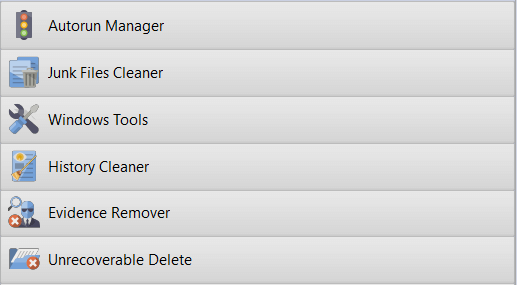
1. Autorun Manager
Autorun Manager is a quality tool for monitoring programs and services that start automatically when we turn on the computer. To optimize boot performance and ensure that only necessary programs run in the background, this is of great importance.
2. Junk Files Cleaner
What is usually done by some software, which is mainly cleaning the computer, we can now clean with the Revo tool. All those temporary files that accumulate while we work on the computer, cache data and other unwanted “garbage” that takes up space on the computer and slows down the operation of the operating system can be easily removed with Junk Files Cleaner. Junk Files Cleaner in Revo Uninstaller is a piece of software responsible for performing very important functionality for maintaining the health of your computer.
3. Windows Tools
The Run Windows tool provides us with faster access to some basic Windows service programs. It speeds up and simplifies access and use of the most important tools for managing and maintaining the Windows operating system.
4. History Cleaner
Caching could be described as the activity of storing data for reuse, such as a copy of a web page sent by a web server. Web browsers save copies of pages in order to load them faster, and depending on the platform on which the web page was created, each has its own caching methods.
Your browsing history, as well as a number of other data that are collected and stored on your computer while you browse websites, can threaten your privacy. Revo Uninstaller’s History Cleaner was created to help maintain your online privacy by erasing these traces.
5. Evidence Remover
Of course, we keep some personal files, sensitive data and confidential documents on the computer. These files and data can leave traces on the operating system even after you delete these files. Evidence Remover in Revo Uninstaller is designed to permanently delete such files and make them unrecoverable.
6. Unrecoverable delete
The Unrecoverable Delete function is intended for those situations when you need to delete some files or folders in a way that guarantees that they cannot be recovered and restored.
7. Backup Manager
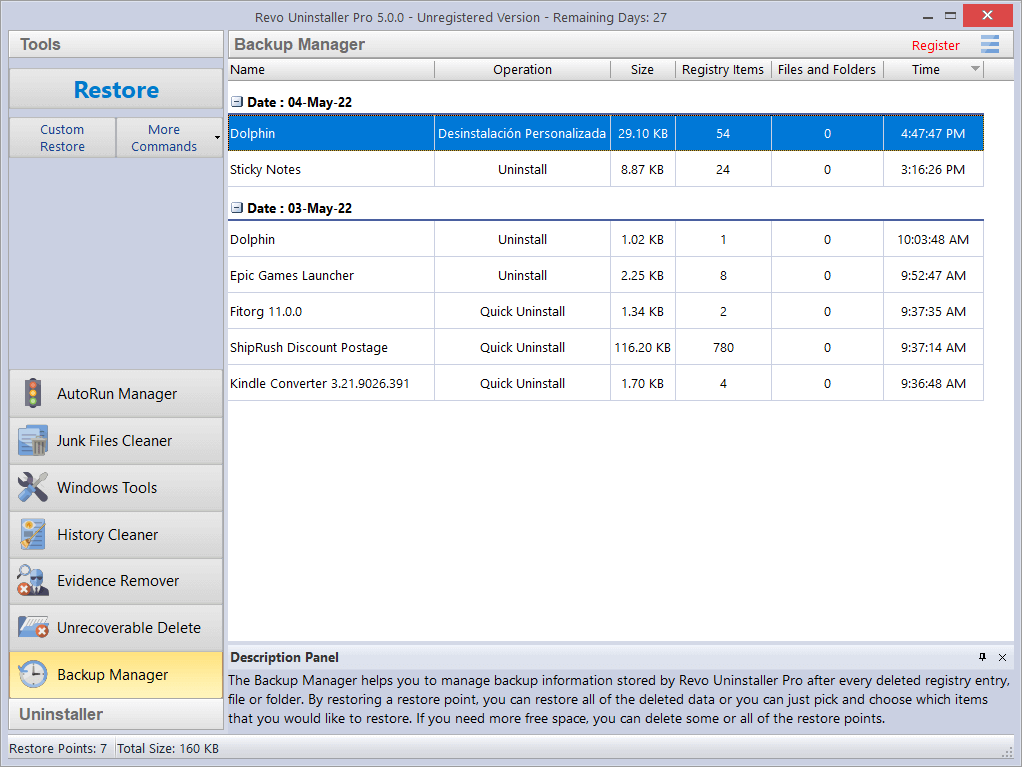
System stability and data security mainly rely on backup. The backup manager in Revo Uninstaller enables the creation and management of backups for critical system settings and files.
Is Revo Uninstaller a stable and safe software?
One of the first and most important questions when it comes to any software that we intend to install on our system is stability and security. The reason is that we give the program the right to change or remove files and entries in the registry system database.
According to all the collected information, Revo Uninstaller is a respectable and completely safe software. It’s been around for years and went through a series of checks until it reached version 5.3.0. and enjoys the trust of a large number of IT professionals.
Some of the testers scanned the installation file in order to check if it contains hidden malicious files. It is marked as safe by companies such as Avast, Bitdefender, Kaspersky and others. But an important note once again is that you only download Revo Uninstaller from the official site. This is the only way you can be sure that you have a legitimate copy.
Conclusion
The extraordinary Hunter Mode, the program installation monitoring function, and the ability to completely remove software that is very difficult to remove, along with a very simple interface, put this system maintenance software in the 5-star category. The free version provides a large number of options, but only the Pro version unlocks all the functions that are worth the investment for more advanced users.
Based on software tested so far with the same or similar purpose, Revo Uninstaller is the ultimate tool for maintaining a clean and efficient Windows operating system. Don’t miss to install Revo Uninstaller and take far more control over your system than you had before Revo. Try this software and see for yourself how easy it is to manage and keep your system clean and safe.
Download Revo Uninstaller from this link
Author: Bosnić Nedim